
If your PC takes too long to start, it can quickly become frustrating. The good news: in most cases, slow boot times are not caused by hardware failure — but by configuration, background programs, or outdated storage.
Here’s a practical guide on how to make your PC boot faster.
1. Disable Unnecessary Startup Programs
One of the most common reasons for slow boot times is too many programs launching automatically.
How to check:
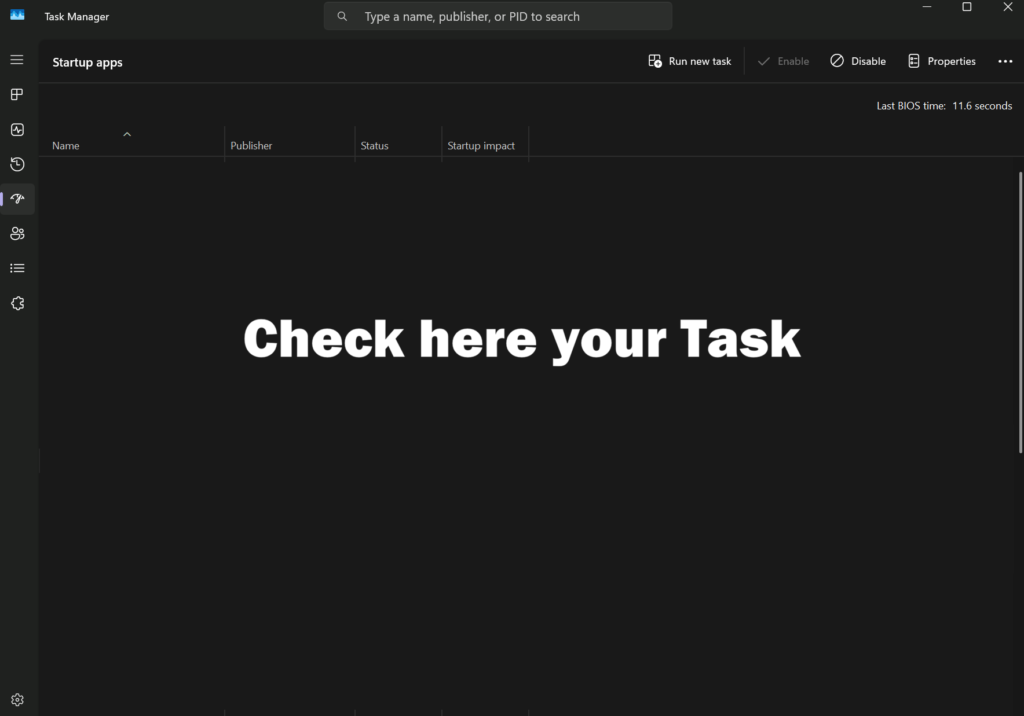
- Press Ctrl + Shift + Esc to open Task Manager
- Go to the Startup tab
- Disable programs you don’t need immediately after boot
Focus on:
- Game launchers
- Cloud storage apps
- Auto-updaters
- Communication tools
Only disable software you recognize. If unsure, research the process name first.
This alone can reduce boot time significantly.
2. Enable Fast Startup in Windows
Windows includes a feature called “Fast Startup” that combines shutdown and hibernation for quicker boot times.
How to enable it:
- Open Control Panel
- Go to Power Options
- Click Choose what the power buttons do
- Enable Turn on fast startup
Note: If you frequently change hardware components, you may prefer disabling this feature.
3. Use an SSD as Your System Drive
If your PC still runs on a traditional HDD, upgrading to an SSD is the single biggest improvement you can make.
Why SSD matters:
- Faster data access
- Reduced boot time
- Faster application loading
- Overall smoother system performance
Even a basic SATA SSD dramatically improves startup speed. NVMe SSDs offer even better performance on supported systems.
If your operating system is installed on an HDD, consider migrating it to an SSD.
💻 Recommended SSD Upgrades

- HUGE SPEED BOOST: Get random read/write speeds that are 40%/55% faster than 980 PRO; Experience up to 1400K/1550K IOPS, while sequential read/write speeds up to 7,450/6,900 MB/s reach near the max performance of PCIe 4.0*
- BREAKTHROUGH POWER EFFICIENCY: Use less power and get more performance; Enjoy up to 50% improved performance per watt over 980 PRO, plus optimal power efficiency with max PCIe 4.0 performance**
- SMART THERMAL CONTROL: Samsung's own nickel-coated controller delivers effective thermal control; With its slim size, 990 PRO is a perfect fit for desktops and laptops that meet the PCI-SIG D8 standard***
- THE CHAMPION MAKER: Up to 65% improvement in random performance enables faster loads for an ultimate gaming experience on PS5 and DirectStorage PC games****
- SAMSUNG MAGICIAN SOFTWARE: Get the most out of your SSD with Samsung Magician's advanced yet intuitive optimization tools; Monitor drive health, protect valuable data, and receive important updates for your 990 PRO

→ Very fast, ideal for modern systems

- Boot up faster. Load files quicker. Improve overall system responsiveness
- 300% faster than a typical hard drive
- Improves battery life because it’s 45x more energy efficient than a typical hard drive
- Micron 3D NAND – advancing the world's memory and storage technology for 40 years
- Crucial 3-year limited warranty
→ Best price-performance for older PC
4. Update BIOS and Enable Fast Boot
Some motherboards offer a “Fast Boot” option in BIOS.
To check:
- Restart your PC
- Enter BIOS (usually by pressing DEL or F2 during startup)
- Look for “Fast Boot” settings
Enabling this can reduce hardware initialization time.
Only change BIOS settings if you are comfortable doing so.
5. Reduce Background Services
Over time, Windows accumulates services and scheduled tasks.
You can:
- Uninstall unused software
- Disable unnecessary third-party services
- Clean temporary files using Windows Storage settings
Keep your system lean and focused.
6. Keep Drivers Updated
Outdated drivers can delay startup or cause system delays during boot.
Update:
- Chipset drivers
- Storage drivers
- Network drivers
- Graphics drivers
For best results, download drivers directly from the manufacturer’s website.
7. Check for Malware
If your PC suddenly becomes slower during startup, it could be caused by unwanted software running in the background.
Run:
- Windows Security full scan
- A trusted antivirus scan
Unexpected background processes can increase boot time.
8. Clean Up Your Drive
If your system drive is nearly full, startup performance may suffer.
Keep at least:
- 20% free storage space
Use:
- Windows Disk Cleanup
- Storage settings
- Remove unused applications
How Fast Should a PC Boot?
Approximate expectations:
- HDD system: 45–90 seconds
- SATA SSD: 15–30 seconds
- NVMe SSD: 10–20 seconds
If your system is significantly slower, optimization is likely needed.
In most cases, slow boot times are caused by:
- Too many startup programs
- Running Windows on an HDD
- Outdated drivers
- Background services
Start with disabling startup apps and checking your storage type. If you’re still using an HDD, upgrading to an SSD delivers the biggest improvement.
More practical PC performance guides will follow here on the blog.
This article contains affiliate links. If you purchase through them, we may earn a commission.