
A slow internet connection can be frustrating — especially when working, streaming, gaming, or downloading large files. The good news: in many cases, you can significantly improve your connection without changing your internet provider.
Here are practical and realistic ways to make your internet faster on your PC.
1. Use a Wired Connection
If you want maximum stability and speed, nothing beats a wired Ethernet connection.
Benefits of LAN:
- Lower latency (important for gaming)
- More stable speeds
- Less interference
- No signal drops through walls
If possible, connect your PC directly to your router using an Ethernet cable. Even a basic Cat 6 cable can make a noticeable difference.
2. Improve Your Wi-Fi Setup
If you must use Wi-Fi, optimize it properly.
Position Matters
- Place your router in a central location.
- Avoid placing it behind metal objects or inside cabinets.
- Keep it elevated rather than on the floor.
Reduce Interference
- Avoid placing the router near microwaves or other electronics.
- Use the 5 GHz band if available (faster, but shorter range).
- Use 2.4 GHz only if you need more range.
Upgrade Old Hardware
Older routers can bottleneck your connection. If your router is several years old, upgrading to a modern Wi-Fi 6 router can significantly improve performance.
If your router is several years old, upgrading to a modern model can make a huge difference — especially for streaming, gaming, and multiple devices.
Some reliable options include Wi-Fi 6 routers that offer better speed and stability.
I can recommend the following router on Amazon
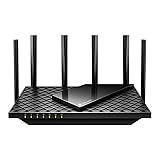
- Tri-Band WiFi 6E Router - Up to 5400 Mbps WiFi for faster browsing, streaming, gaming and downloading, all at the same time(6 GHz: 2402 Mbps;5 GHz: 2402 Mbps;2.4 GHz: 574 Mbps)
- WiFi 6E Unleashed – The brand new 6 GHz band brings more bandwidth, faster speeds, and near-zero latency; Enables more responsive gaming and video chatting
- Connect More Devices—True Tri-Band and OFDMA technology increase capacity by 4 times to enable simultaneous transmission to more devices
- More RAM, Better Processing - Armed with a 1.7 GHz Quad-Core CPU and 512 MB High-Speed Memory
- OneMesh Supported – Creates a OneMesh network by connecting to a TP-Link OneMesh Extender for seamless whole-home coverage.

3. Restart Your Router Regularly
Routers run 24/7 and can accumulate memory or connection issues over time.
A simple restart:
- Turn it off
- Wait 30–60 seconds
- Turn it back on
This often fixes unexplained slowdowns.
4. Close Background Applications
Many apps use bandwidth without you noticing:
- Cloud backups
- Windows updates
- Game downloads
- Streaming services in background tabs
Open Task Manager → check Network usage → close unnecessary programs.
5. Update Network Drivers
Outdated network drivers can reduce performance or stability.
On Windows:
- Open Device Manager
- Check your Network Adapter
- Update drivers if available
You can also download the latest drivers directly from the manufacturer’s website (Intel, Realtek, etc.).
6. Check for Malware
Malware can use your bandwidth in the background.
Run:
- Windows Security scan
- Or a trusted antivirus scan
Unexpected high network usage can sometimes be a security issue.
7. Optimize Your DNS
Switching to a faster DNS server can improve website loading times.
Popular alternatives:
- Google DNS: 8.8.8.8
- Cloudflare DNS: 1.1.1.1
This doesn’t increase raw download speed, but it can make browsing feel faster.
8. Check Your Internet Plan
Sometimes the problem is simply the bandwidth limit of your contract.
Run a speed test and compare:
- Promised speed
- Actual speed
If you consistently receive much less than expected, contact your ISP.
9. Reduce Network Congestion
If multiple people are streaming or downloading at the same time, your speed will drop.
Solutions:
- Enable QoS (Quality of Service) in your router settings
- Schedule large downloads overnight
- Use wired connections for gaming PCs
10. Consider a Mesh System (For Larger Homes)
If you live in a larger house, Wi-Fi extenders or mesh systems can dramatically improve signal coverage and stability.
This article contains affiliate links. If you purchase through them, we may earn a commission.