
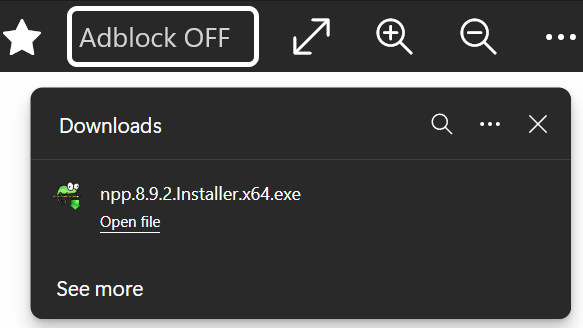
Downloads in Fast Internet Browser are fully functional. When a file is downloaded, it is saved correctly to the Windows Downloads folder, and the in-app download dialog displays the file name as expected.
The browser currently uses the default WebView2 download dialog provided by Microsoft’s WebView2 control within the UWP environment. This means that the download process itself is handled by WebView2 according to standard Chromium-based behavior, rather than through a fully custom-built download manager.
At the moment, however, opening the file directly from the browser’s download dialog does not yet work reliably. The file itself is downloaded without any issues and is available in the system’s Downloads directory, but the “open file” action inside the app is not fully connected to the Windows file launch mechanism.
Why This Happens in a UWP Environment
Since Fast Internet Browser is built as a UWP application using WebView2, downloads operate within the constraints of the UWP sandbox model.
In a traditional Win32 desktop application, launching a downloaded file directly from a custom dialog is relatively straightforward. In UWP, however:
- File system access must respect sandbox boundaries
- File launch operations require explicit API handling
- Certain system-level interactions behave differently than in classic desktop apps
- WebView2’s default download dialog is not automatically wired to a custom file-launch bridge
Because the app relies on the default WebView2 download dialog, the download event itself is handled correctly — but the final step of triggering a Windows file launch from within the UWP container still requires additional implementation work.
The file is downloaded properly.
The launch integration is what still needs refinement.
Current Implementation Details
When a download is initiated:
- WebView2 handles the download request.
- The file is saved to the Windows Downloads directory.
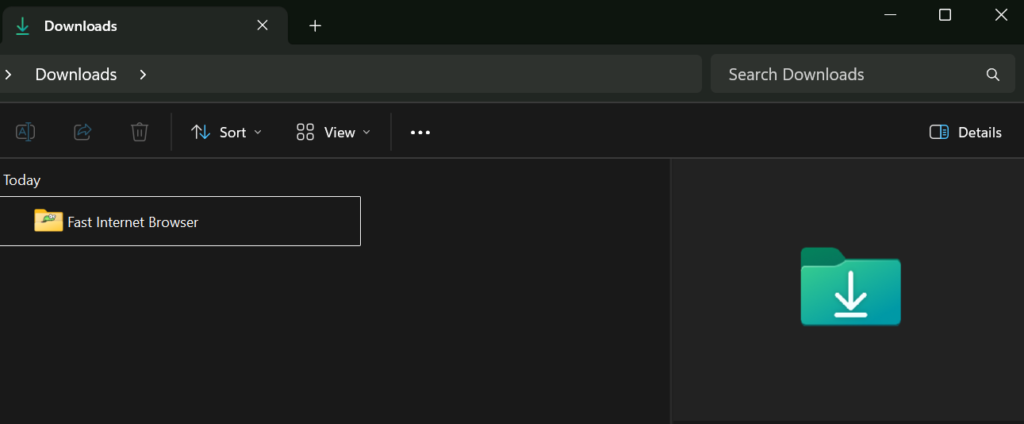
- A dedicated folder named “Fast Internet Browser” is created automatically.
- The download dialog confirms completion.
What does not yet happen automatically is the secure invocation of the Windows file launch API from within the UWP environment.
This is not a limitation of downloads themselves — it is simply a matter of properly connecting the WebView2 download completion event to a compliant and stable file-launch implementation.
I am currently reviewing how to bridge this behavior correctly while remaining fully aligned with UWP platform guidelines and Microsoft Store requirements.
How to Access Downloaded Files
Until direct file opening from the in-app dialog is fully implemented, downloaded files can be accessed manually in just a few simple steps.
All downloaded files are saved to the standard Windows Downloads directory. Inside that folder, a dedicated folder named “Fast Internet Browser” is automatically created to keep files organized.
To open a downloaded file:
- Open File Explorer in Windows.
- Navigate to Downloads.
- Open the folder named Fast Internet Browser.
- Locate your downloaded file and open it normally.
The file is already fully downloaded and ready to use — it simply needs to be opened directly from the Downloads folder for now.
Ongoing Improvements
The goal is to make the download experience feel consistent with user expectations from traditional desktop browsers, while still respecting UWP architecture and platform compliance.
Future refinements will focus on:
- Properly linking the WebView2 download completion event to Windows file launch APIs
- Ensuring stable behavior across different file types
- Maintaining predictable and secure system interaction
Downloads themselves are stable and reliable. The remaining work is centered on improving convenience and direct integration within the app interface.